
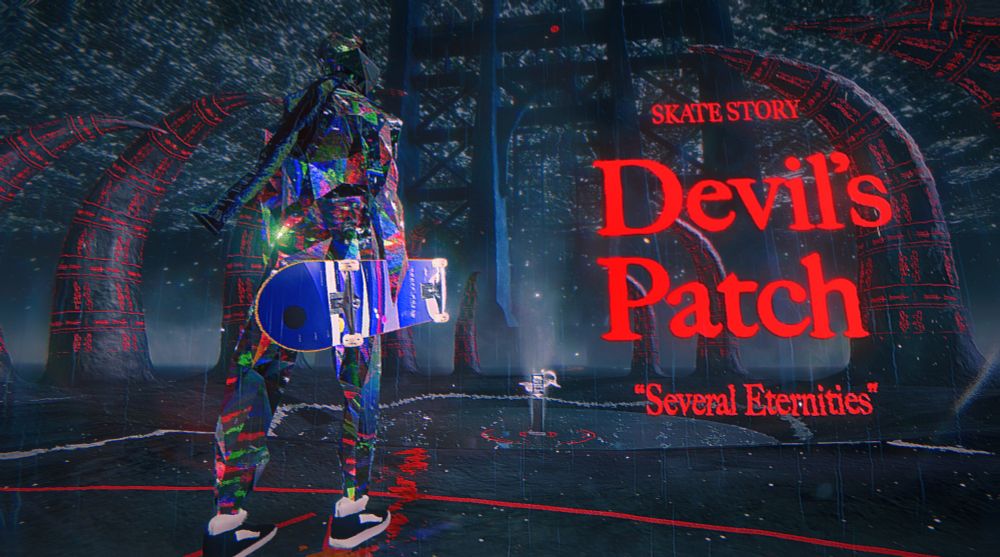
Skate Story (Switch 2): all the updates (latest: Devil’s Patch)
On this page, you will find all there is to know about the various updates for Skate Story on Nintendo Switch 2.
Click here for more games and consoles updates!
Skate Story – Ver. ??? (Devil’s Patch)
- Release date: January 31st/February 1st 2026
- Patch notes:
The Devil’s Patch Changelog
- The Sinkhole has been adjusted to help prevent softlocks. Tested on several save files.
- Chapter 4
- Chapter 5
- Chapter 6
- Chapter 8
- Chapter 9
- Chapter 4
- Specific Softlock Fixes
- Various Skater’s Study Softlock Fixes
- Chapter 4 Printer / Letters
- Chapter 8 Out of Bounds
- Missable Milk Lake Deck fixed
- Various Skater’s Study Softlock Fixes
- Sticker Max Inventory increased
- Sound Mix fixed (It was being overwritten to +6db)
- Tiny Hub shortcuts fixed
- Chapter 3 Skybox Mipmaps Fixed
- Roman Numeral 19 Fixed
- Performance Optimizations
- Hub Music updated to final masters
- Other small geometry updates to various levels
- Fixed some minor cutscenes not being skippable
- A stone indicating the total number of tricks performed has been added to the Skater’s Dream.
Photo Mode
- A little camera, with a note: “Take snapshots to remember your eternal torment.”
- A simple Photo Mode has been added.
- Access it from the Pause Menu
Several Eternities (New Game+)
- Now, when you complete the game, it should not wipe any achievement progress. This should help with several achievements.
- Your Decks, Stickers, and other items are kept.
- Your Soul count is kept.
- Stickers in the world come back, so you can get them again.
- All enemies have increased health.
- Additional notes: none
- Source: by Sam Eng (Steam) / Sam Eng (Bluesky)
How to download updates for Skate Story on Nintendo Switch?
To download the updates for Skate Story, you have three options:
- let the console do its thing if you have automatic downloads activated, and didn’t completely turn it off
If not…
- try to launch the game from the Home Menu while being connected to the internet. You should get a prompt when doing so: simply follow the instructions on screen;
OR
- select the game > press either + or – to go to the Options page > select Software update > select Via the Internet.
To check that you have the latest version installed, simply select the game on the Home Menu, and press – or + to go to the Options: the version number is displayed just below the game title.
